Cloud Gaming On the Go
How to game on the road without a console or powerful PC.
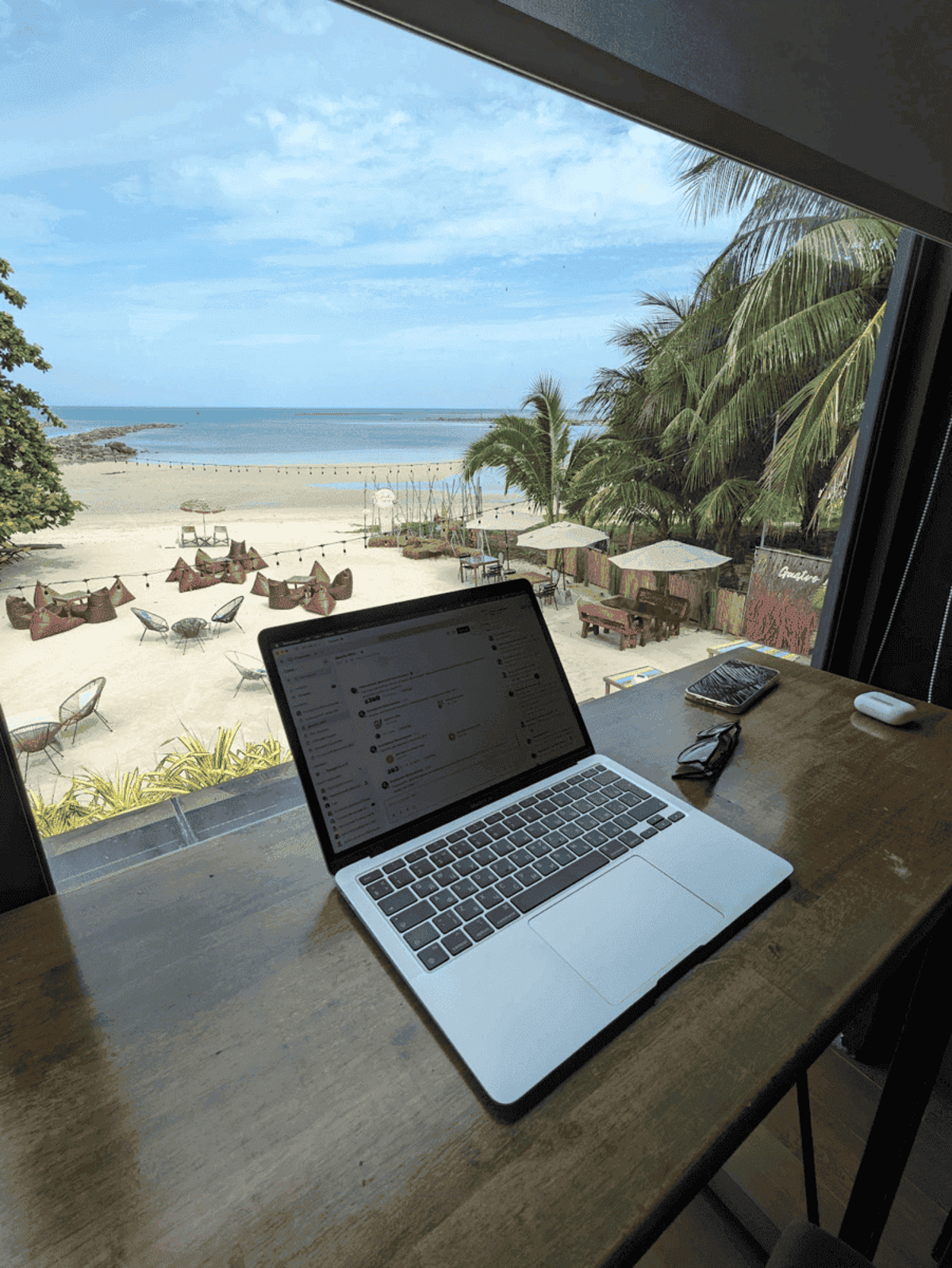
I travel with a MacBook Air M1, and let’s just say gaming on it isn’t exactly ideal. It lacks a dedicated graphics card, and half the games in my Steam library simply won’t launch. Some games run via CrossOver, some run natively, but the selection is very limited. Honestly, it feels like I spend more time tweaking settings and trying to get things running than actually playing.
Plus, it gets confusing – I ended up with two instances of Steam and Epic Games installed (one for Mac, one for Windows via CrossOver), which was a mess, to say the least. Getting something I actually wanted to play running natively felt like winning the lottery. More often than not, my Mac gaming sessions looked like this: wait ages for a game to download and install, only to be greeted by a launch error. Eventually, I gave up on that hassle and switched to cloud gaming.
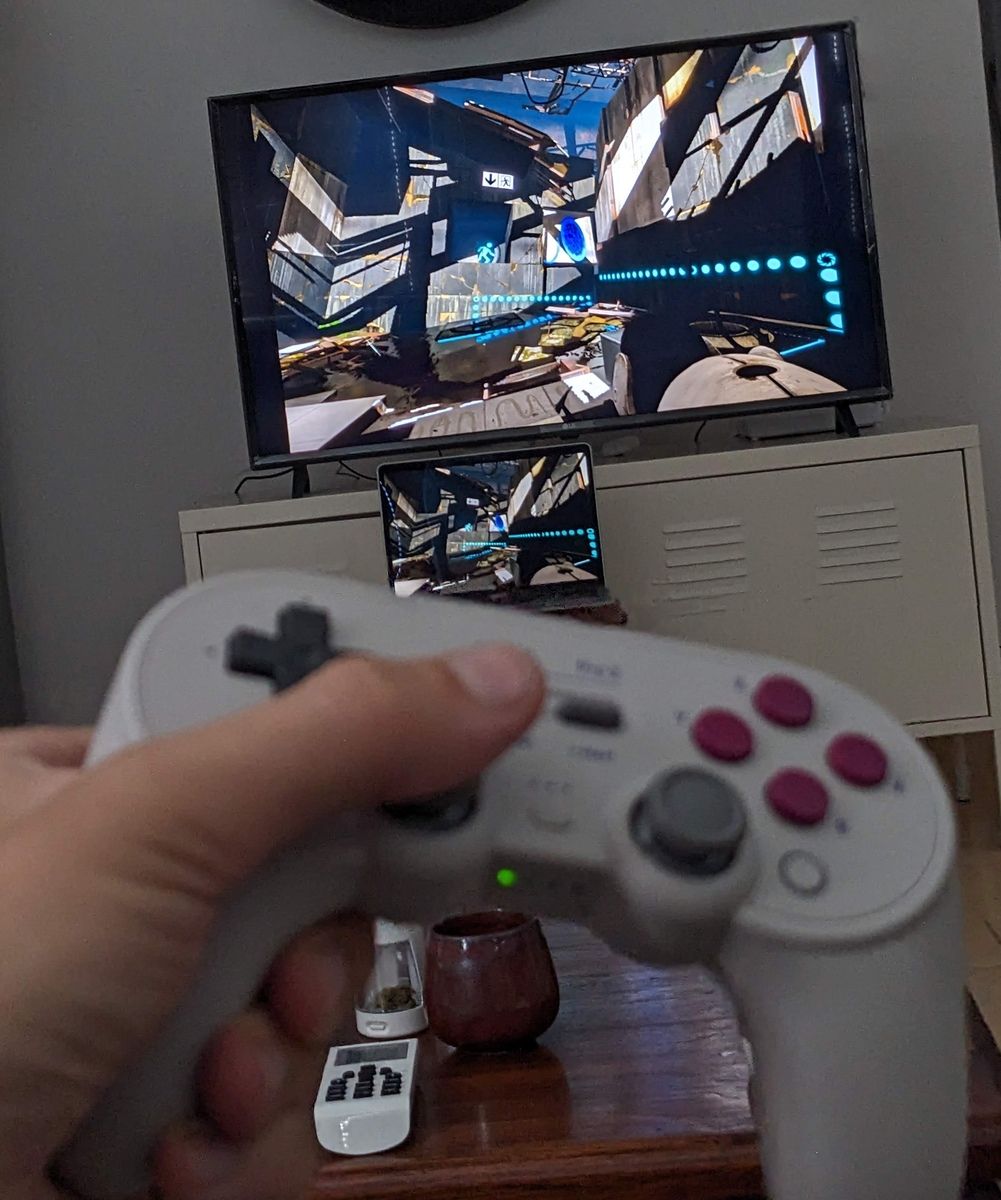
My travel gaming setup:
- GeForce Now - cloud gaming service
- 8bitDo Pro 2 - controller
- Google Chromecast with Google TV - Android TV streaming stick
- Any TV in a rental or my laptop
GeForce Now
GeForce Now really surprised me. I installed the app on my Chromecast (which runs Android TV), linked my Steam account, and boom – I was playing. No massive 100GB downloads, no two-hour installations; you just pick a supported game from your library, and it launches instantly. It works surprisingly well. You can connect Bluetooth headphones, a keyboard, mouse, or a controller. Of course, you need a fast internet connection and low ping to the nearest GFN server. That’s the biggest catch.
Another downside is the limited library. You can link your Steam account and play games you own, but not all games are supported by GeForce Now itself. A good chunk of my library is simply unavailable. However, most popular online multiplayer games and many co-op titles are there, which definitely helps. There aren’t a ton of AAA single-player titles compared to native platforms, but the library is updated regularly. Besides Steam, you can also link your Xbox (PC Game Pass), Ubisoft Connect, and Epic Games Store accounts.
8bitDo Pro 2 - The Versatile Controller
Regarding the 8bitDo Pro 2, it’s a solid device: good quality plastic, reliable sticks, looks and feels almost like a DualShock, and the battery lasts for ages (seriously, months). Overall, it works great in my current setup, but there are a few quirks.
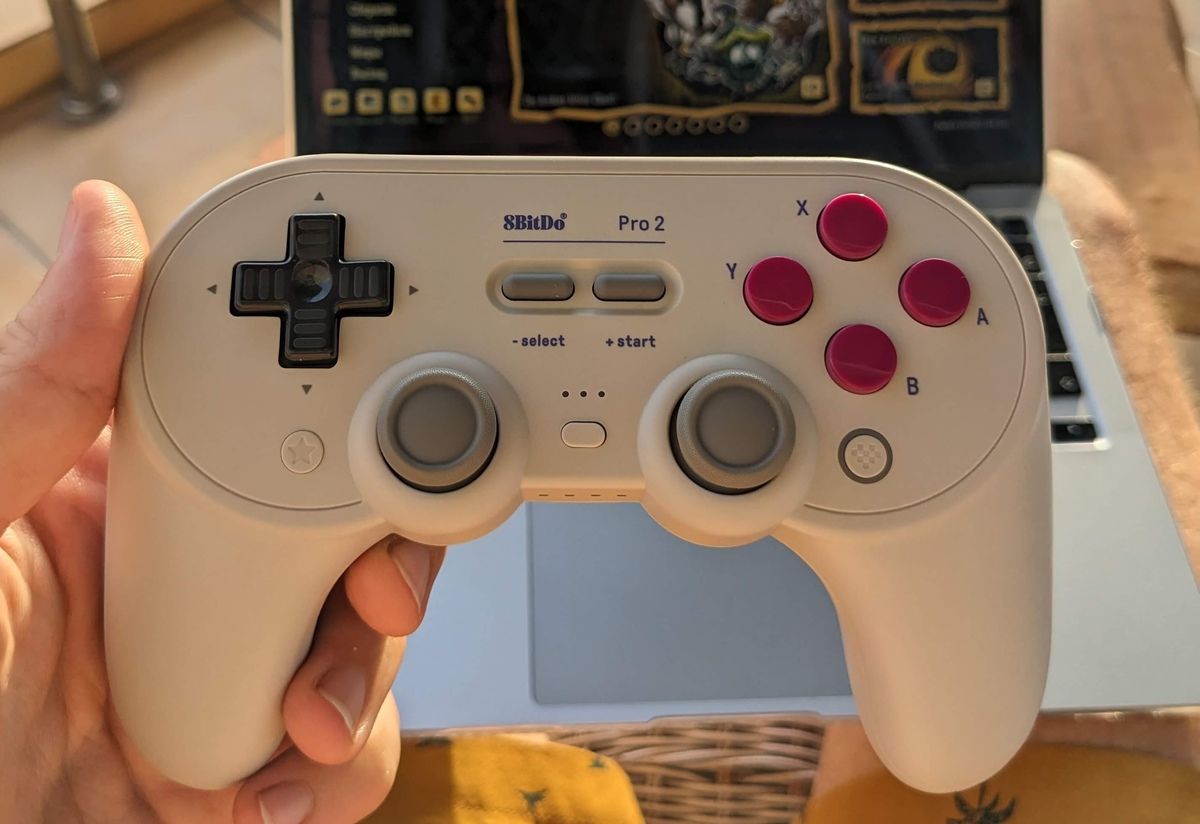
The controller has four Bluetooth connection modes labeled S (Switch), A (macOS), X (Windows/Xbox), and D (Android). macOS recognizes the controller in a couple of modes (A and sometimes X/D), but sometimes identifies it a bit strangely. I’ve tried it with Steam on my MacBook (both native macOS games and via CrossOver). Generally, it works, but sometimes there are oddities, like the analog sticks being overly sensitive and requiring specific tuning within the game or Steam Input. Occasionally, you might need to experiment with different connection modes to get it working right. You can also connect it via USB-C, which works fine too. So yeah, there can be some fiddling involved with macOS, but it works flawlessly with Android (like on the Chromecast).
Google Chromecast with Google TV
The Chromecast with Google TV is probably my favorite travel gadget. Plug it into any TV in a hotel or rental apartment, connect it to Wi-Fi, and you’re instantly set up: your YouTube, Spotify, GFN, RetroArch, a handy remote, and your paired headphones and controller. Ready to roll. Plus, the device itself is lightweight and compact – takes up almost no space, even if you’re traveling light with just a backpack.
RetroArch
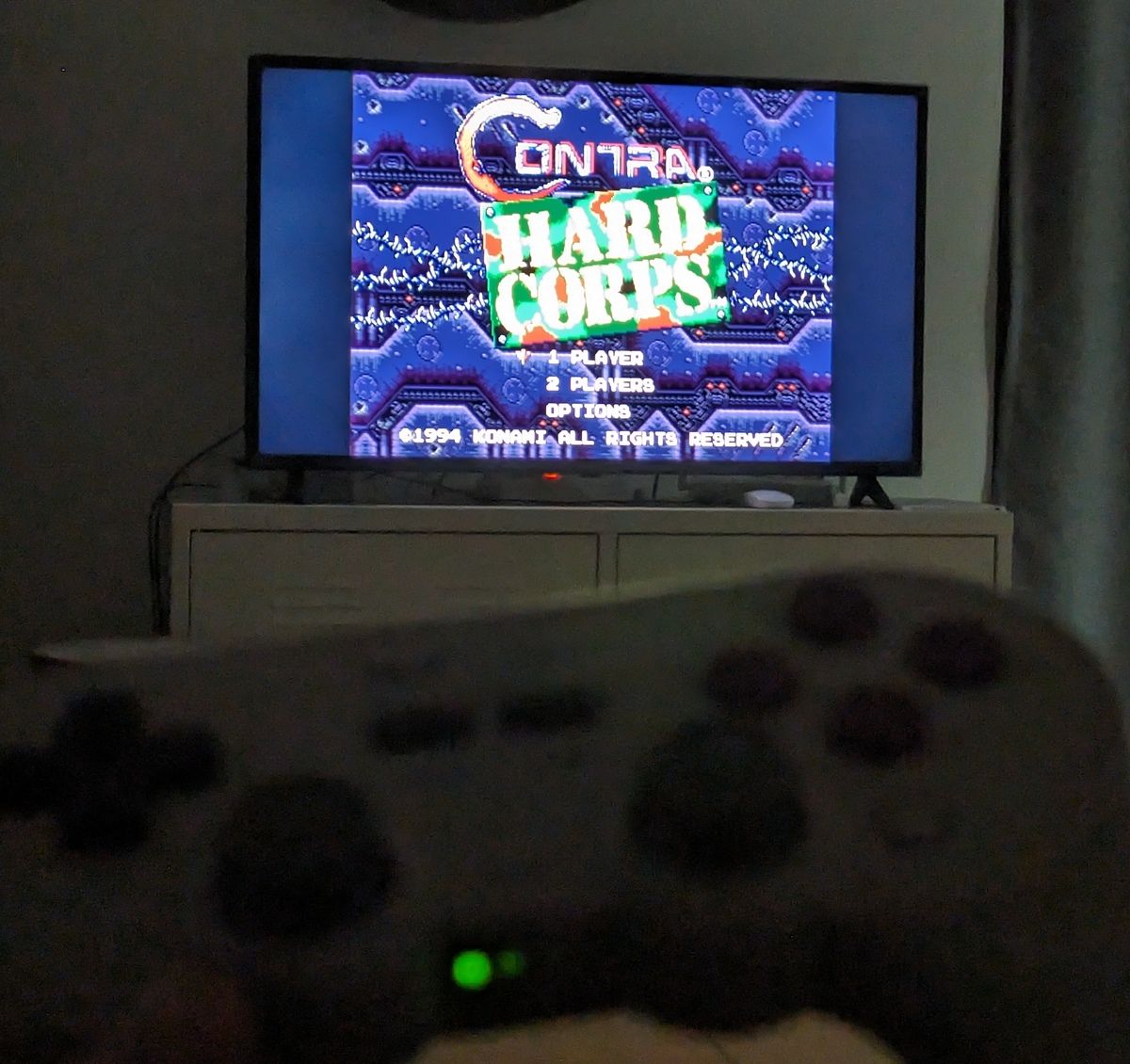
RetroArch can also be installed on the Chromecast. It lets you emulate games from NES, SNES, Sega Genesis/Mega Drive, and other classic consoles. The 8bitDo controller connects perfectly, button mapping is configurable, and it supports save states (saving and loading anywhere). RetroArch itself can be a bit intimidating to configure at first; it took me some time to get the hang of its interface and settings. But overall, the retro gaming fun is worth the initial effort.
You’ll need to find the game ROMs yourself (which isn’t difficult online), but the slightly trickier part can be getting them onto the Android TV device. To do this, you can install a file manager app (like X-plore or FX File Explorer) from the Google Play Store that supports cloud storage like Google Drive or Dropbox, making file transfers easier.
👾 Enjoy.
MORE